
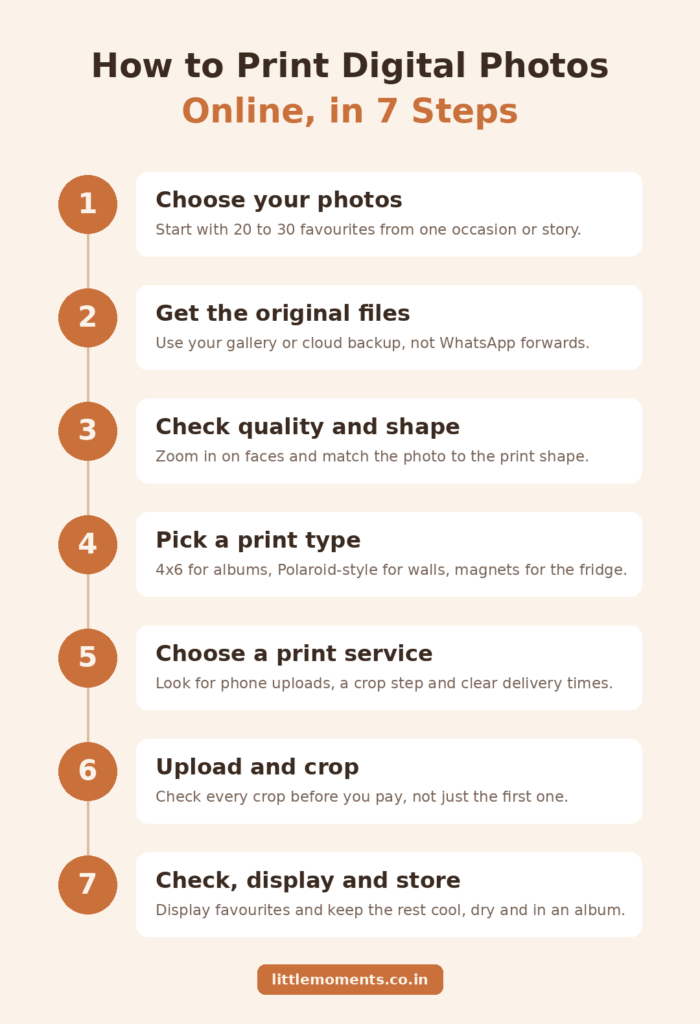
Learning how to print digital photos as physical prints online takes just seven steps: choose your photos, find the original files, check sharpness and shape, pick a print type, choose a print service, upload and crop, then receive and store your prints. You don’t need a printer, a studio visit or editing skills, only your phone and a few minutes.
The difference between prints you love and prints that disappoint usually comes down to a few small decisions along the way. This guide walks through each one, so your photos come out sharp, well framed and exactly the way you remember the moment.
Table Of Contents
- Step 1: Choose The Photos Worth Printing
- Step 2: Get The Original, Full-Quality Files
- Step 3: Check Sharpness, Resolution And Shape
- Step 4: Pick The Right Print Type And Size
- Step 5: Choose An Online Print Service
- Step 6: Upload, Crop And Place Your Order
- Step 7: Check, Display And Store Your Prints
- Common Mistakes To Avoid
- Key Takeaways
- Frequently Asked Questions
Step 1: Choose The Photos Worth Printing
Start small. A focused set of 20 to 30 photos is easier to finish than a plan to “print everything from last year”, and it looks better as a collection.
Some easy ways to narrow it down:
- By occasion: a birthday, a wedding, a festival or a trip
- By person: your child’s year, your parents, your best friend
- By story: a first home, a road trip, a college reunion
- By favourites: tap the heart or “favourite” button as you scroll your gallery, then print only those
Skip near-duplicates. If you took eight versions of the same group photo, pick the one where everyone’s eyes are open.
Step 2: Get The Original, Full-Quality Files
This is the step most people skip, and it’s the main reason prints come out blurry. The same photo can exist in several versions, and a print can’t restore detail that compression has already thrown away.
When a photo exists in more than one place, use this order of preference:
- The original in your phone’s gallery or camera roll
- The original in a cloud backup such as Google Photos or iCloud
- A full-size export from an editing app
- A social media download, only if the original is gone
- A screenshot or chat-app forward, only for very small prints
Use The Photo From Your Gallery, Not From Chat
Photos forwarded on WhatsApp, saved from Instagram or downloaded from a group chat are usually compressed to a fraction of their original size. They look fine on a phone screen but turn soft or blocky when printed. A file of just 10 to 15 KB will almost always print blurry.
If you’re asking a friend or relative for a photo, ask for the original. On WhatsApp, they can send it in HD, which keeps much more detail than the standard setting.
Download From Google Photos Or iCloud In Full Quality
If your photos live in the cloud, check how they were backed up. Google Photos offers Original quality, which keeps full resolution, and Storage saver, which resizes photos larger than 16 MP down to 16 MP. Even 16 MP is far more detail than a 4×6 or Polaroid-style print needs, so either works for everyday prints. Download the photo itself; never screenshot the preview.
On iPhone, if iCloud is set to optimise phone storage, open each photo and let the full version finish downloading before you upload it.
A Quick Note On iPhone HEIC Photos
Newer iPhones save photos in the space-saving HEIF/HEIC format by default. If a photo won’t upload or open on a website, switch future photos to JPEG under Settings → Camera → Formats → Most Compatible, as Apple explains here, or export the photo as a full-size JPEG. Don’t take a screenshot of it instead.
Step 3: Check Sharpness, Resolution And Shape
A minute spent checking each photo before you upload saves you from paying for prints you won’t love.
Is It Sharp Enough?
Zoom in on faces. If eyes look soft or smudgy on your phone, they’ll look worse on paper. Watch out for:
- Photos taken in low light, which often look grainy when printed
- Digital zoom, which reduces detail
- Screenshots of video calls or chats, which are low-resolution by nature
- Photos that have been edited, filtered and re-saved many times
Work Out The Effective Print Resolution
The “300 DPI” figure often quoted for printing is easy to misread. What matters is the effective resolution: the photo’s pixel dimensions divided by the print size in inches.
For a 4×6 inch print from a 1200 x 1800 pixel photo:
1200 pixels ÷ 4 inches = 300 PPI
1800 pixels ÷ 6 inches = 300 PPI
Use these as rough guides:
| Effective resolution | What to expect |
|---|---|
| 300 PPI or more | Crisp, even when viewed up close |
| Around 200 PPI | Still looks good at normal viewing distance |
| Below about 150 PPI | Softness becomes noticeable |
Any photo taken directly on a phone from the last several years is many times larger than 1200 x 1800 pixels, so the original is almost never the problem. Compressed copies are. If a photo is borderline, choose a smaller print rather than enlarging it.
Will It Fit The Print Shape?
Aspect ratio is a photo’s shape, width compared with height. Phone photos are usually 3:4 (or 4:3 sideways), and some are 9:16. A 4×6 print is 2:3, and Polaroid-style prints have a photo area close to 4:5. When the shapes don’t match, part of the photo is trimmed to fill the print.
That’s rarely a problem unless something important sits near the edge. A simple rule:
- Crop to fill when the subject sits safely away from the edges.
- Choose a different print shape when cropping would cut off the reason you took the photo, such as people standing at both edges of a group photo.
- Never trust an automatic crop without checking faces, hands, horizons and any text near the edges.
Our guide to the best photo print dimensions for albums and keepsakes explains print shapes in more detail.
Edit With Print In Mind
A phone screen gives off its own light; paper only reflects the light around it. That’s why a print often looks a little darker and less vivid than the same photo on your phone.
Before uploading, keep edits gentle:
- Brighten a photo slightly if the shadows are already hard to see on screen.
- Avoid heavy filters, extreme saturation and strong sharpening, which look harsh on paper.
- Keep skin tones natural rather than pushing the warmth too far.
- Save edits as a full-size, high-quality JPEG in the standard sRGB colour space, which is what phones use by default.
If you shoot RAW on a camera, export your edited photos to high-quality JPEGs first, since most consumer print services don’t accept RAW files.
Step 4: Pick The Right Print Type And Size
The right format depends on where the photo will end up. Small prints are forgiving: they need fewer pixels and suit albums, pinboards and gift boxes. Larger prints make more of a statement, but every flaw in focus or compression shows more.
| Print type | Best for | Why choose it |
|---|---|---|
| 4×6 photo prints | Albums, a stack of everyday memories, gifting | The classic size that fits most standard albums |
| Polaroid-style prints | Photo walls, journals, memory boxes, fairy-light displays | The white border gives a nostalgic, gift-ready look |
| Mini Polaroid-style prints | Scrapbooks, cards, small spaces | Lots of tiny moments in very little space |
| Adhesive photo prints | Diaries, journals, laptops | Stick straight onto a surface, no glue needed |
| Photo fridge magnets | The fridge, office cabinets | A memory you see every day |
| Framed prints | Desks, bedside tables, walls | Ready to display the moment they arrive |
| Photo calendars | Desks, new-year gifts | Twelve photos and a whole year of use |
For everyday memories, 4×6 Photo Prints are the easy default. For a display or a gift, Polaroid Photo Prints add instant-camera charm, and Polaroid Photo Fridge Magnets keep a favourite on the fridge. You can browse every format in our personalised photo prints collection.
Glossy Or Matte?
| Finish | Looks like | Best for | Watch for |
|---|---|---|---|
| Glossy | Bright colour, strong contrast | Celebrations, travel photos, gifts, Polaroid-style prints | Glare under direct light, fingerprints |
| Matte | Soft, low-glare surface | Prints handled often or framed near windows | Colours look less punchy |
Glossy is the most popular choice for everyday photo prints because colours pop. Album sleeves or a frame take care of fingerprints.
Step 5: Choose An Online Print Service
There’s no single best print service for every order. One that’s perfect for a few fridge prints may not suit 100 matching event photos. Compare services on the details that matter for your order:
| What to compare | Why it matters | What to check |
|---|---|---|
| Phone uploads | Most photos live on phones | Can you upload straight from your gallery? |
| Crop or preview step | Prevents surprise trimming | Can you reposition each photo before paying? |
| Paper and finish | Affects colour, glare and feel | Is the paper type clearly listed? |
| Pack sizes | Bigger packs usually lower the price per photo | Do the pack sizes suit your order? |
| Delivery times | Matters for gifts with a date | Are processing and transit times both shown? |
| Support | Helps if an upload fails | Is there a quick way to reach a real person? |
Online Printing Vs. A Local Photo Studio
| Online print service | Local photo studio | |
|---|---|---|
| Ordering | From your phone, any time | In person, during shop hours |
| Formats | Prints, magnets, frames, Polaroid-style prints, calendars | Mostly standard prints and frames |
| Speed | A few days including delivery | Often same day |
| Best for | Planned orders, gifts, larger batches, special formats | Urgent single prints, ID photos |
If you need one print within the hour, a local studio wins. For almost everything else, ordering online is more convenient and offers far more choice.
Step 6: Upload, Crop And Place Your Order
Most online services follow the same basic flow:
- Choose the product, then the size and number of photos.
- Upload your photos from your phone’s gallery.
- Adjust the crop for each photo so faces and important details sit comfortably inside the print.
- Review everything, then check out.
Treat The Crop Preview As Your Final Proof
The crop step is your last chance to catch mistakes before your photos go to print. Check each photo, not just the first one:
- Is it the right way up?
- Are faces, hands and important objects fully inside the print area?
- Has it been zoomed in further than you expected?
- Is the selected size right for your album, frame or gift?
If something looks wrong, don’t assume it will be fixed during printing. Move the crop, upload a better file or choose a different print shape.
Ordering From Little Moments
On Little Moments, you upload photos with the button on the product page before adding the product to your cart, then adjust each crop right after uploading. If a photo doesn’t match the product’s shape and you skip the crop step, it will be cropped to fit. Prefer not to upload? Place the order and send your photos on WhatsApp to 8722993069 with your order ID.
Shipping is free on orders of ₹599 and above, with a flat ₹49 fee below that. Orders are processed within 2 to 3 working days, then delivered on regular shipping in:
| Destination | Regular shipping |
|---|---|
| Bengaluru | 2 working days |
| Rest of Karnataka | 2 to 3 working days |
| South India | 4 to 5 working days |
| North India | 5 to 7 working days |
| Union Territories | 8 to 10 working days |
Express shipping is faster: 1 to 2 working days within Karnataka, 2 to 3 in South India and 3 to 5 in North India.
Plan Around Delivery Time
Whichever service you use, remember that processing time and courier time are separate, and together they make up your wait. For a birthday, anniversary or trip, order with a few days to spare, especially around weekends, public holidays and the monsoon.
Tips For Large Batch Orders
For 20 or more photos, inconsistency causes more regret than anything else. Set your rules before you start uploading:
- Put only your final photos in one album or folder on your phone.
- Rename or number them if the order matters, such as
01_cake,02_family. - Apply the same editing style to all of them, especially brightness and warmth.
- Choose one size and finish for photos meant to sit together.
- Check every crop individually.
- Count your uploads against the pack size before you pay.
- Upload over Wi-Fi if you’re sending a lot of photos.
Step 7: Check, Display And Store Your Prints
Check Your Prints When They Arrive
Open the package carefully and compare the prints with your order: the right photos, the right quantity, and crops that match what you approved. A print looking slightly darker than your bright phone screen is normal. A wrong photo, missing prints or damage is worth raising, so take clear photos and contact the seller with your order number.
Display And Store Them
Give your prints a home quickly; prints left in the envelope tend to stay there.
- Display your favourites on a fridge, a pinboard, a photo wall or with LED photo string lights.
- Put the rest in an album. A Polaroid Photo Album keeps Polaroid-style prints together and easy to flip through.
- Handle prints by the edges, since glossy prints pick up fingerprints easily.
- Store them somewhere cool and dry, away from direct sunlight. The Library of Congress recommends photo-safe albums and sleeves, and keeping humidity moderate.
Common Mistakes To Avoid
- Printing WhatsApp or social media copies instead of the original. This is the number one cause of blurry prints.
- Uploading screenshots of photos rather than the photos themselves.
- Skipping the crop check, then being surprised when an edge is trimmed.
- Enlarging a low-resolution photo. Small prints are far more forgiving.
- Over-editing, which looks harsher on paper than on a bright screen.
- Ordering at the last minute for a gift, without allowing for processing and delivery.
Key Takeaways
- Start with the original photo from your gallery or cloud backup, never a forwarded copy or screenshot.
- Check resolution by dividing pixel dimensions by print size; 300 PPI is ideal and around 200 PPI is fine for most prints.
- Compare your photo’s shape with the print’s shape, and choose a print shape that keeps what matters.
- Keep edits gentle, because paper looks darker than a phone screen.
- Review every crop before you pay.
- Keep batch orders consistent: one size, one finish, one editing style.
- Allow for both processing and delivery time when the prints are a gift.
Frequently Asked Questions
Can I print photos directly from my phone?
Yes. Online print services let you upload straight from your phone’s gallery. Choose the product, upload your photos, adjust each crop and check out. You don’t need a computer or a printer.
What is the best file format for printing photos?
A full-size, high-quality JPEG is the most widely accepted format for online printing. If your iPhone saves photos as HEIC and one won’t upload, switch to the Most Compatible camera setting or export the photo as JPEG.
Why do my prints look blurry when the photo looks fine on my phone?
Usually because the photo was compressed along the way, most often by being forwarded on WhatsApp or downloaded from social media. A small phone screen hides this. Upload the original from your gallery, or ask the sender to share it in HD.
What resolution do I need for a 4×6 photo print?
About 1200 x 1800 pixels gives 300 PPI at 4×6 inches, which looks crisp up close. Lower resolutions can still look fine for casual prints, but below about 150 PPI softness becomes noticeable. Any photo taken directly on a modern phone has far more than enough.
How do I turn Google Photos pictures into physical prints?
Download the photo from Google Photos to your phone, then upload it to the print service. Don’t screenshot the preview. Both Original quality and Storage saver backups have enough resolution for everyday prints like 4×6 and Polaroid-style photos.
Can I print a WhatsApp photo without it looking blurry?
Sometimes, but it’s a risk. If the person who took the photo still has it, ask them to send the original or share it in HD. If WhatsApp is the only copy, choose a small print, such as a mini Polaroid-style print, where compression is less noticeable.
How do I stop part of my photo being cut off?
Compare the photo’s shape with the print’s shape before ordering. If they differ, reposition the crop when you upload, or choose a print shape closer to your photo. Never assume an automatic crop will keep every edge.
Should I choose glossy or matte prints for family photos?
Glossy gives brighter colour and stronger contrast, which suits most family photos and gifts. Matte reduces glare, so it’s useful for prints handled often or framed near a bright window.
How long does it take to get photo prints delivered?
It depends on the service and your location. With Little Moments, orders are processed in 2 to 3 working days, then delivered in 2 working days within Bengaluru, 4 to 5 days across South India and 5 to 7 days in North India on regular shipping. Express shipping is faster.
Is it better to print photos online or at a studio?
For one urgent print, a local studio is quicker. For a batch of photos, online printing is usually more convenient and better value, since prints come in packs and you get more formats to choose from without leaving home.